
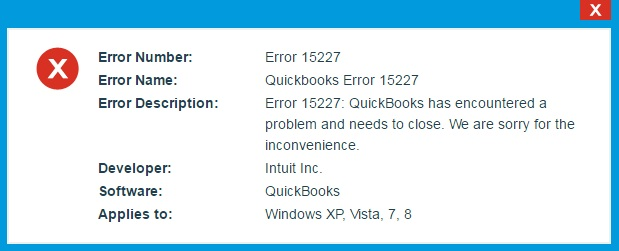
QuickBooks Error 15227 occurs when QuickBooks fails to download or install a maintenance release update due to damaged system files, incorrect internet settings, or interrupted update communication. The error generally appears while updating QuickBooks Desktop or downloading payroll updates, preventing the software from installing the latest maintenance release successfully.
Maintenance releases in QuickBooks are important because they contain security patches, bug fixes, payroll updates, and performance improvements. When Error 15227 interrupts the update process, QuickBooks may continue operating on outdated files, which can eventually affect payroll accuracy, software stability, and online services.
QuickBooks Error 15227 is commonly linked with corrupted Windows components, improper Internet Explorer settings, firewall restrictions, or damaged QuickBooks update files. In many cases, the error appears when QuickBooks cannot verify update downloads properly or when Windows security settings interrupt the maintenance release installation.
Incorrect digital signature verification, unstable internet communication, outdated browser settings, or damaged update configuration are among the most common reasons behind this issue. If the maintenance release fails repeatedly, QuickBooks may experience performance problems and compatibility issues with payroll services.
Why Does QuickBooks Error 15227 Occur?
QuickBooks Error 15227 mainly occurs when QuickBooks cannot complete the maintenance release installation process successfully. Internet configuration problems and damaged update components are the biggest reasons behind the issue.
QuickBooks maintenance release failures related to Error 15227 are commonly caused by:
- Damaged QuickBooks update files
- Incorrect Internet Explorer settings
- Firewall blocking QuickBooks updates
- Disabled SSL settings
- Corrupted Windows system files
- Incorrect digital signature verification
- Antivirus interference
- Unstable internet connection
- Outdated Windows components
- Damaged QuickBooks installation files
Note:
Steps to Manually Install the QuickBooks Digital Certificate
If Windows cannot verify the digital signature of the update, you can manually force Windows to trust the QuickBooks application files.
Reopen QuickBooks and attempt the maintenance release update again.
Close QuickBooks Desktop.
Open Windows File Explorer and navigate to C:\Program Files\Intuit\QuickBooks (Year).
Find the file named QBW32.exe, right-click it, and select Properties.
Go to the Digital Signatures tab and select Intuit, Inc. from the signature list.
Click Details, then click View Certificate.
Click Install Certificate, set the Store Location to Local Machine, and click Next.
Select Automatically select the certificate store based on the type of certificate, click Next, and then click Finish.
What Error Messages Appear With QuickBooks Error 15227?
QuickBooks Error 15227 usually appears with maintenance release or payroll update warnings. These messages indicate that QuickBooks failed to complete the update installation properly.
“QuickBooks failed to install maintenance release updates.”
- Meaning: QuickBooks could not complete the update installation process.
- Cause: Damaged update files or interrupted communication.
- Impact: QuickBooks continues running on outdated program files.
“Error 15227: The maintenance release update failed.”
- Meaning: QuickBooks could not verify or install the downloaded maintenance release.
- Cause: Incorrect internet settings or corrupted update components.
- Impact: Software updates stop before completion.
“Payroll update did not complete successfully.”
- Meaning: Payroll update files failed during installation or synchronization.
- Cause: Interrupted update communication or damaged payroll files.
- Impact: Payroll tax tables remain outdated.
“QuickBooks cannot verify digital signatures.”
- Meaning: QuickBooks failed to validate update security certificates.
- Cause: Incorrect date/time settings or SSL configuration issues.
- Impact: Maintenance release installation gets blocked.
“Error 15227: QuickBooks has encountered a problem and needs to close.”
- Meaning: QuickBooks crashed mid‑update and cannot continue running.
- Cause: Damaged update files, corrupted Windows components, misconfigured internet/SSL, or antivirus/firewall interference.
- Impact: QuickBooks shuts down, leaving payroll and maintenance updates incomplete, blocking migration readiness.
What Symptoms Indicate QuickBooks Error 15227?
QuickBooks Error 15227 mainly affects maintenance release installations, payroll synchronization, and update verification. Most users notice repeated update failures before the complete error appears.
- Maintenance release updates fail repeatedly: QuickBooks downloads the update but cannot complete the installation process successfully.
- Payroll updates stop during installation: The payroll update process begins normally but fails during verification or installation.
- QuickBooks freezes while updating:The software may become slow or unresponsive during maintenance release installation.
- Update verification warnings appear frequently: Users may notice digital signature or security certificate warnings during updates.
- Online QuickBooks services stop responding: Payroll and connected services may fail because QuickBooks is running outdated components.
- QuickBooks displays repeated update notifications: The software continuously prompts users to install updates because previous maintenance releases failed.
Resolve QuickBooks Error 15227 in Minutes
QuickBooks Error 15227 can usually be resolved by repairing update components, correcting internet settings, and restoring secure communication during maintenance release installation. The troubleshooting methods below focus specifically on fixing maintenance release update failures.
How to Reset QuickBooks Updates?
Damaged update downloads are one of the biggest reasons behind QuickBooks Error 15227. Resetting updates removes corrupted update files and downloads fresh maintenance release components.
Follow These Steps to Reset QuickBooks Updates
- Open QuickBooks Desktop.
- Go to Help > Update QuickBooks Desktop.
- Select the Update Now tab.
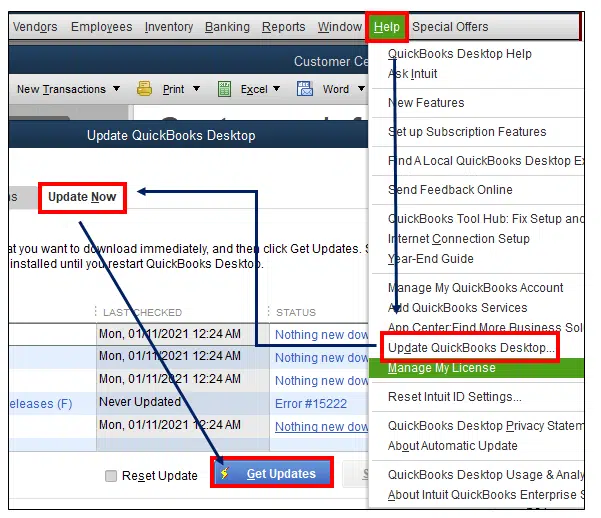
- Click Reset Update.
- Select Get Updates.
- Restart QuickBooks after the update completes.
Estimated Time: 10–15 minutes
Risk Level: Low
Verification: Retry the maintenance release installation after QuickBooks restarts.
How to Verify Internet Connection Settings in QuickBooks?
Incorrect internet settings can interrupt maintenance release communication and prevent QuickBooks from downloading updates properly.
Follow These Steps to Verify Internet Settings
- Open QuickBooks Desktop.
- Go to Help > Internet Connection Setup.
- Select Use my computer’s internet connection settings.
- Click Next.
- Open Advanced Connection Settings.
- Verify the internet configuration.
- Save changes and restart QuickBooks.
Estimated Time: 5–10 minutes
Risk Level: Low
Verification: Retry the maintenance release update after reopening QuickBooks.
How to Configure SSL Settings for Maintenance Release Updates?
QuickBooks requires SSL settings to establish secure encrypted communication while downloading maintenance releases.
Follow These Steps to Enable SSL Settings
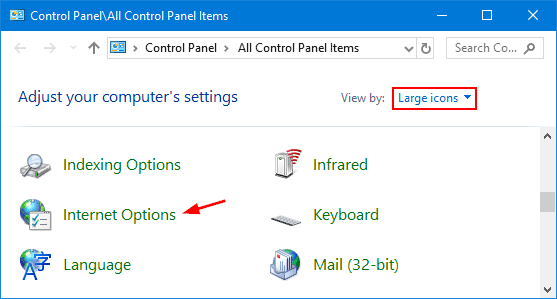
- Open Control Panel.
- Select Internet Options.
- Open the Advanced tab.
- Scroll to the Security section.
- Enable:
- Use SSL 2.0
- Use SSL 3.0
- Click Apply and then OK.
- Restart the computer.
Estimated Time: 5–8 minutes
Risk Level: Low
Verification: Retry the update installation after restarting the system.
How to Repair Internet Explorer Configuration?
QuickBooks Desktop uses Internet Explorer settings for secure update communication even if another browser is installed.
Follow These Steps to Repair Browser Settings
- Open Internet Options from Control Panel.
- Open the Connections tab.
- Click LAN Settings.
- Disable unnecessary proxy settings.
- Open the Advanced tab.
- Restore default internet settings.
- Save changes and restart Windows.
Estimated Time: 8–12 minutes
Risk Level: Low
Verification: Retry QuickBooks maintenance release updates after restoring browser settings.
How to Fix Firewall Restrictions Blocking QuickBooks Updates?
Firewall settings may prevent QuickBooks from communicating securely with Intuit update servers during maintenance release installation.
Important QuickBooks Files
- QBW32.exe
- QBUpdate.exe
- QBDBMgrN.exe
- IntuitSyncManager.exe
Follow These Steps to Configure Firewall Rules
- Open Windows Defender Firewall.
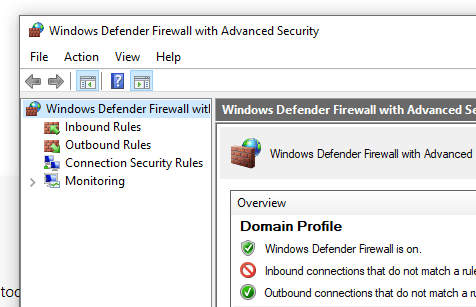
- Click Advanced Settings.
- Select Inbound Rules.
- Create rules for QuickBooks files.
- Allow the connection.
- Repeat the same process for Outbound Rules.
- Restart the computer.
Estimated Time: 10–20 minutes
Risk Level: Medium
Verification: Retry the maintenance release installation after system restart.
How to Run QuickBooks Tool Hub for Error 15227?
QuickBooks Tool Hub can repair damaged QuickBooks update components and resolve common maintenance release installation failures.
Follow These Steps to Use QuickBooks Tool Hub
- Download and install QuickBooks Tool Hub.
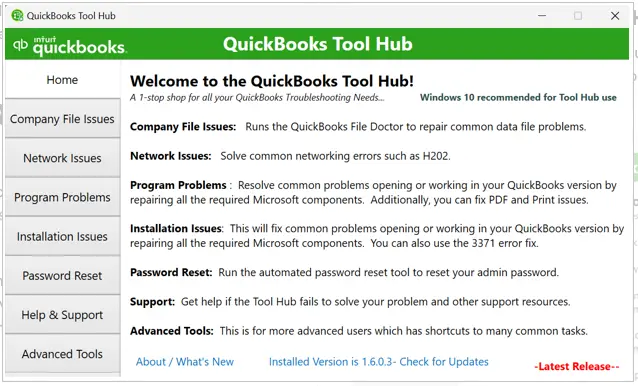
- Open the utility.
- Select Program Problems.
- Run Quick Fix my Program.
- Open Installation Issues if needed.
- Run the QuickBooks Install Diagnostic Tool.
- Restart the computer.
Estimated Time: 15–25 minutes
Risk Level: Low
Verification: Retry QuickBooks updates after the repair process completes.
How Can Antivirus Software Trigger QuickBooks Error 15227?
Antivirus applications may block QuickBooks update executables or interrupt maintenance release verification during installation.
Antivirus-related maintenance release interruptions commonly include:
- Blocking update download files
- Restricting digital signature verification
- Interrupting payroll synchronization
- Scanning maintenance release files continuously
- Blocking QuickBooks internet communication
Temporarily disabling antivirus protection during updates often resolves the issue.
Can Damaged Windows Components Cause QuickBooks Error 15227?
Yes, damaged Windows components can interrupt maintenance release installations and trigger QuickBooks Error 15227. QuickBooks relies on several Windows services and updates components during installation verification.
Windows-related problems commonly include:
- Corrupted Windows Installer components
- Damaged system files
- Outdated Windows updates
- Broken Microsoft runtime components
- Invalid security certificate settings
Repairing Windows files and installing pending updates often resolves repeated maintenance release failures.
QuickBooks Error 15227 During Desktop to Online Migration
QuickBooks Error 15227 becomes particularly disruptive when businesses attempt to migrate from Desktop to Online, because the error blocks the maintenance release updates that are required before conversion. Migration tools depend on the Desktop installation being fully patched and stable; if update verification fails, the migration workflow stalls.
Key Migration Impacts
- Update prerequisites: Desktop must be updated to the latest maintenance release before data export. Error 15227 prevents this, leaving the company file incompatible with the Online migration utility.
- Payroll synchronization failures: Outdated payroll tax tables caused by failed updates block payroll data transfer, leading to incomplete or inaccurate migration.
- Digital signature verification issues: If Desktop cannot validate update certificates, the migration tool may reject the company file as insecure.
- Firewall and antivirus conflicts: Security restrictions that trigger Error 15227 also block migration utilities from communicating with Intuit servers.
- Windows dependency risks: Since Desktop relies on Windows components for updates, damaged system files can halt migration entirely, whereas QuickBooks Online avoids these dependencies.
Conclusion
QuickBooks Error 15227 mainly occurs when QuickBooks fails to install maintenance release updates successfully. Damaged update files, incorrect internet settings, SSL verification problems, firewall restrictions, and corrupted Windows components are the most common reasons behind the issue.
Resetting QuickBooks updates, repairing internet configuration, restoring SSL communication, and fixing damaged update components usually resolve the problem successfully. Maintaining updated Windows settings and proper security configuration also helps prevent future QuickBooks maintenance release failures.
FAQs
Q1. What does QuickBooks Error 15227 mean?
QuickBooks Error 15227 indicates that QuickBooks failed to download or install a maintenance release update successfully.
Q2. Why do maintenance release updates fail in QuickBooks?
Maintenance release updates usually fail because of damaged update files, incorrect internet settings, SSL issues, or firewall restrictions.
Q3. Can antivirus software trigger QuickBooks Error 15227?
Yes. Antivirus applications may block maintenance release files or interrupt update verification.
Q4. Does Internet Explorer affect QuickBooks maintenance updates?
Yes. QuickBooks Desktop uses Internet Explorer settings for secure update communication and digital signature verification.
Q5. Can resetting QuickBooks updates resolve Error 15227?
Yes. Resetting updates removes damaged update files and downloads fresh maintenance release components.
Q6. Does QuickBooks Online show Error 15227?
No. Error 15227 mainly affects QuickBooks Desktop because Desktop depends on Windows-based maintenance release installations.