
QuickBooks Error H505 is a multi-user hosting error that generally appears when QuickBooks Desktop fails to establish proper communication with the company file stored on another computer or dedicated server. The error belongs to the H-series family of QuickBooks errors, which are specifically associated with network hosting, server connectivity, and multi-user communication failures. In many cases, the error develops when users attempt to switch QuickBooks into multi-user mode or access a company file hosted on another system within the network.
The error usually appears with a message such as:
“This company file is on another computer, and QuickBooks needs some help connecting.”
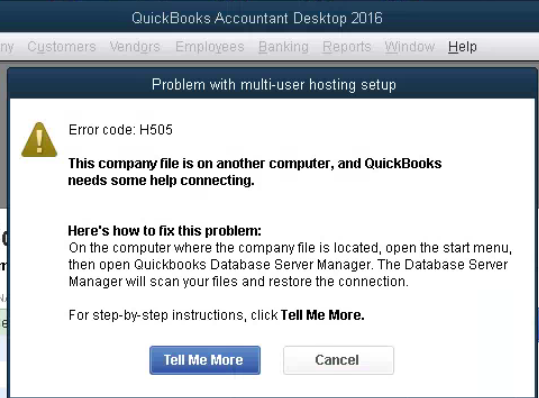
In many businesses, Error H505 becomes highly disruptive because employees lose access to shared accounting records, payroll files, invoices, and financial reports simultaneously. Users may also encounter the issue after Windows updates, firewall configuration changes, damaged network files, QuickBooks Database Server Manager failures, or incorrect hosting settings.
Unlike basic company file errors, Error H505 is deeply connected with network communication breakdowns between QuickBooks workstations and the hosting server. Restarting QuickBooks alone may temporarily suppress the issue, but recurring H505 errors generally indicate deeper problems involving firewall restrictions, DNS failures, database services, hosting conflicts, or unstable network infrastructure.
Major Causes of QuickBooks Error H505
1. Incorrect Hosting Configuration
Incorrect hosting setup is one of the leading causes of Error H505.
What Happens
Only one dedicated server should host the QuickBooks company file. If hosting is enabled on multiple systems:
- Network conflicts occur
- Workstations fail to identify the correct host
- Multi-user communication breaks
Result
QuickBooks cannot establish a stable connection with the server-hosted company file.
2. Firewall or Antivirus Blocking QuickBooks Services
Security software frequently blocks QuickBooks communication ports and hosting services.
Commonly Blocked Processes
- QBDBMgrN.exe
- QBW32.exe
- FileManagement.exe
- QuickBooks Database Server Manager
Result
QuickBooks workstations fail to communicate securely with the hosting server.
3. Damaged ND File
The Network Descriptor (.ND) file stores server location and network communication details.
If the ND File Becomes Corrupted:
- Workstations cannot locate the server
- Multi-user access fails
- Company file communication breaks
4. QuickBooks Database Server Manager Failure
QuickBooks Database Server Manager controls multi-user company file access.
If the Service Stops:
- Workstations disconnect from the server
- Hosting communication fails
- QuickBooks cannot switch to multi-user mode
5. DNS Resolution Failures
QuickBooks may fail to identify the hosting server properly if DNS settings become unstable.
Impact
- Server name resolution fails
- Workstations cannot detect the host
- Multi-user communication becomes inconsistent
6. Weak or Unstable Network Connectivity
Interrupted network communication can trigger Error H505 repeatedly during:
- Multi-user access
- Company file synchronization
- Server communication
7. Windows Firewall or Security Updates Conflicts
Some Windows updates modify:
- Firewall rules
- Network permissions
- Communication settings
This may interrupt QuickBooks server communication unexpectedly.
Symptoms of QuickBooks Error H505
Before the full error appears, users often notice:
- Inability to switch to multi-user mode
- Company file access failures
- Slow QuickBooks network performance
- Frequent workstation disconnections
- QuickBooks freezing during file access
- Delayed server responses
- Random network communication interruptions
- Multi-user synchronization instability
QuickBooks Error H505 – Online vs Desktop
QuickBooks Error H505 is a Desktop-specific multi-user connectivity issue. It occurs when a workstation fails to connect to the server hosting the company file. The error is triggered by incorrect hosting configurations, firewall restrictions, damaged ND files, or insufficient permissions. In Desktop, multi-user mode relies on proper server setup, network communication, and QuickBooks services running correctly. If any of these fail, H505 prevents users from accessing the shared company file, leading to downtime and workflow disruption.
QuickBooks Online does not encounter H505 because it is entirely cloud-hosted. Company files are stored on Intuit’s servers and accessed through a browser, eliminating the need for local server hosting, DNS/IP configurations, or firewall adjustments. Multi-user access is managed seamlessly by Intuit’s infrastructure, so users never face workstation-to-server communication errors. Instead, Online issues are typically related to browser performance, internet connectivity, or temporary Intuit server outages — not H-series errors.
Troubleshooting Steps to Resolve QuickBooks Error H505
QuickBooks Error H505 occurs when a workstation cannot connect to the server hosting the company file in multi-user mode. Follow these structured steps to systematically resolve the issue.
Step 1: Run QuickBooks Database Server Manager
- Download and install the QuickBooks Tool Hub.
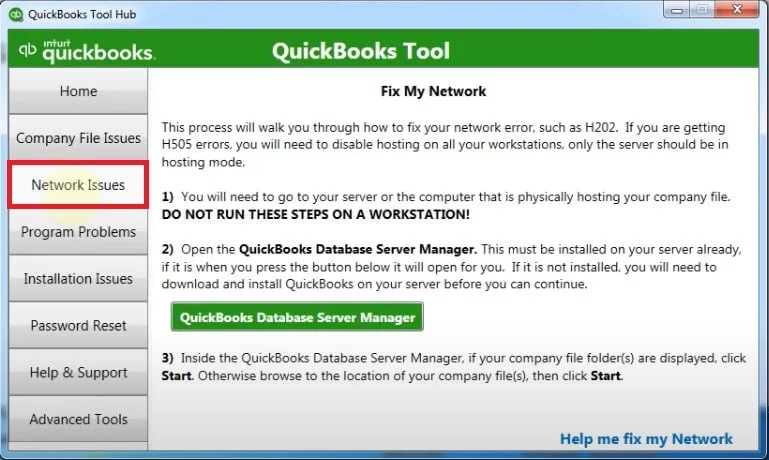
- From Tool Hub, go to Network Issues and run Database Server Manager.
- Scan the company file folder to automatically fix firewall permissions.
- After scanning, open QuickBooks on each workstation and switch to multi-user mode.
Step 2: Turn Off Host Multi-User Access on Workstations
- On each workstation, open QuickBooks and go to File > Utilities.
- If you see Stop Hosting Multi-User Access, select it.
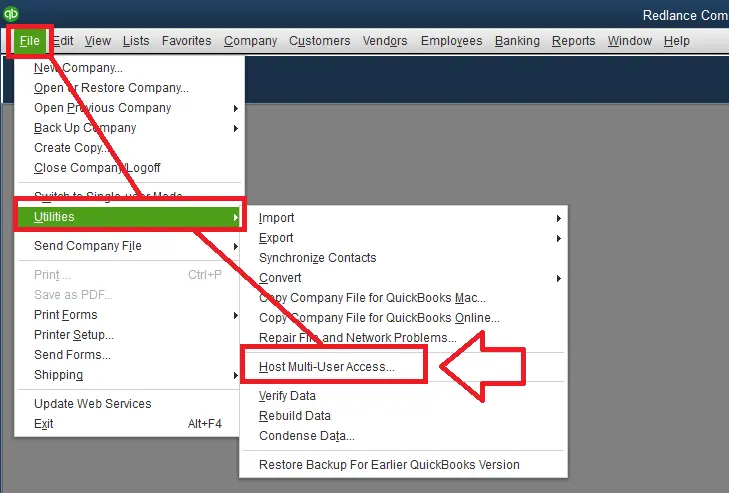
- Only the server computer should host the company file.
Step 3: Update QuickBooks Desktop
- Open QuickBooks and go to Help > Update QuickBooks Desktop.
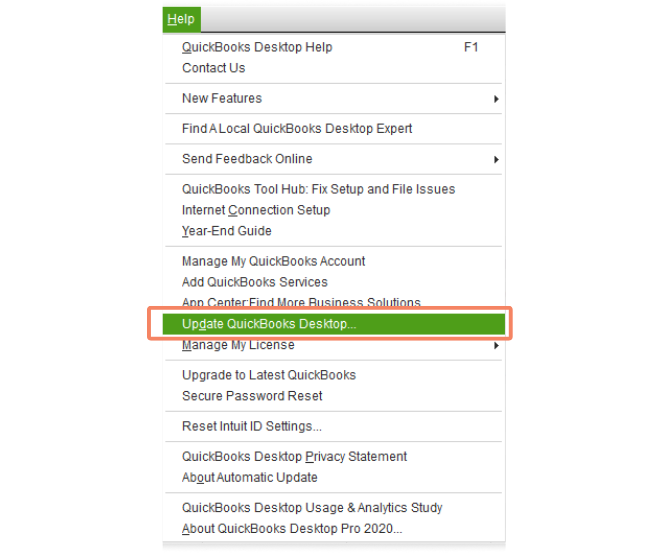
- Select Update Now, tick all options, and click Get Updates.
- Restart QuickBooks and install updates.
Step 4: Create a New Company File Folder
- On the server, create a new folder and copy the company file into it.
- Right-click the folder, go to Properties > Sharing > Advanced Sharing.
- Enable Share This Folder and grant Full Control permissions to all users.
Step 5: Verify Workstation Communication
- Open Command Prompt on both server and workstation.
- Run ipconfig /all to note the server name.
- On the workstation, run ping [server name].
- If packets are received successfully, communication is intact.
Step 6: Configure Windows Firewall Settings
- Go to Control Panel > Windows Firewall > Allow an app through Firewall.
- Ensure QuickBooks is listed and allowed.
- If not, add QuickBooks manually and allow public access.
Step 7: Open Network Ports for QuickBooks
- In Windows Firewall Advanced Settings, create inbound and outbound rules.
- Add TCP ports specific to your QuickBooks version (e.g., 8019, 56728, 55378–55382 for 2018).
- Allow connections and save the rules.
Step 8: Test with a Sample Company File
- Hold Ctrl while opening QuickBooks to access the No Company Open screen.
- Select Open a Sample File and run it in multi-user mode.
- If the sample file works, the issue may be with your company file or installation.
Step 9: Provide Windows Access Permissions
- On the server, right-click the QuickBooks folder and go to Properties > Sharing.
- Add QBDataServiceUserXX and grant Full Control permissions.
- Ensure permissions are properly set on both Windows 10 and Windows Server environments.
Why Does QuickBooks Error H505 Keep Returning?
Common recurrence patterns are as follows:
- Hosting Enabled on Multiple Systems: Multiple hosting systems create repeated server conflicts.
- Antivirus Updates: Security software updates may suddenly block QuickBooks communication.
- Weak Wi-Fi Connectivity: Unstable network connections interrupt multi-user synchronization.
- Windows Firewall Changes: Windows updates may modify firewall and communication rules automatically.
- Damaged ND Files: Corrupted network descriptor files repeatedly interrupt server communication.
Preventive Measures Suggested
Below are the preventive measures recommended to reduce the chances of QuickBooks Error H505 and maintain stable multi-user communication services:
- Keep QuickBooks updated regularly
- Enable hosting only on the dedicated server
- Maintain stable wired network connectivity
- Keep firewall and antivirus exclusions updated
- Backup company files regularly
- Avoid unstable public or shared networks
- Monitor QuickBooks database services periodically
- Run Database Server Manager regularly
- Avoid forced system shutdowns
- Maintain proper folder permissions for all QuickBooks users
Conclusion
QuickBooks Error H505 is a serious multi-user communication issue usually triggered by hosting configuration conflicts, firewall restrictions, damaged ND files, unstable network connectivity, or QuickBooks Database Server Manager failures. Although basic fixes like restarting QuickBooks or refreshing network systems may temporarily resolve the issue, recurring H505 errors often point toward deeper hosting, DNS, firewall, or server communication problems.
The most effective way to resolve the issue permanently is to follow a layered troubleshooting strategy — beginning with basic hosting verification and progressing toward advanced firewall, DNS, database, and network diagnostics. Businesses relying heavily on QuickBooks multi-user environments should also focus on preventive maintenance to maintain stable and uninterrupted access to shared company files.
Frequently Asked Questions
Is QuickBooks Error H505 related to multi-user hosting?
Yes. The error is primarily associated with hosting and server communication problems in multi-user environments.
Can Error H505 occur because of network issues?
Yes. Weak or unstable network connectivity is one of the leading causes.
Does antivirus software trigger QuickBooks Error H505?
Yes. Security software frequently blocks QuickBooks communication ports and hosting services.
Can incorrect hosting settings cause Error H505?
Yes. Hosting enabled on multiple systems is one of the most common causes of QuickBooks Error H505.