
Quickbooks Error 6000, -107 is a company file access error that usually appears when Quickbook desktop fails to open the company file due to network communication issues, damaged configuration files, or improper hosting setup. This error gets triggered when the Transaction Log File (.TLG) associated with the company file becomes corrupted or unreadable.
The error belongs to the family of 6000-series, which is popularly associated with company file corruption risk, firewall restriction, server communication failure, firewall restrictions and multi user hosting conflicts. This issue is significant in businesses which are using the multi-user mode of Quickbook Desktop. Users may face a restricted accessibility on financial transactions, payroll records, accounting data or invoices.
In many situations, the error develops after moving the company file, updating Quickbooks, changing server settings, or experiencing sudden network interruptions. Although many users assume the company file itself is damaged, the actual cause is often linked to corrupted ND or TLG files,database services failure, firewall interference, incorrect hosting configuration or unstable network communications between hosting server and workstations.
Common Error Pop Message:
We’re sorry. QuickBooks encountered a problem.
Error codes: (6000, -107)
- This message is triggered when QuickBooks Desktop fails to open the company file due to a damaged Transaction Log File (.TLG).
- It often appears when users attempt to restore a backup, open the file in multi‑user mode, or when the .TLG file is mismatched with the .QBW file.
- The pop‑up is designed to indicate file access failure, but the underlying cause is usually corrupted support files rather than the company file itself.
QuickBooks Online vs Desktop: Error 6000, -107 Context
QuickBooks Error -6000, -107 is a Desktop‑specific error caused by a damaged Transaction Log File (.TLG) or mismatched backup restores. Since QuickBooks Desktop relies on local hosting, ND/TLG support files, and server permissions, corruption in these files directly blocks company file access.
In contrast, QuickBooks Online does not generate 6000 series errors because it is cloud‑based and does not depend on local support files. The equivalent “effects” in Online are seen as browser cache failures, permission misconfigurations, or unstable internet sessions. Thus, while Desktop users face file corruption and hosting conflicts, Online users face connectivity and accessibility interruptions the disruption is the same (loss of access), but the root cause differs based on the environment.
Migrate QuickBooks Desktop to Online: Error 6000, -107 Implications
During migration, QuickBooks Error 6000, -107 often surfaces when the .TLG file is corrupted or mismatched with the company file being transferred. In Desktop, this blocks the migration process, preventing technicians from opening or restoring the file. The impact is downtime, failed uploads, and potential data integrity risks.
In Online, while the error code itself does not appear, similar migration failures occur due to browser cache issues, role‑based permission mismatches, or unstable internet connections. Essentially, 6000, -107 highlights how Desktop migrations are vulnerable to file corruption and hosting conflicts, whereas Online migrations are vulnerable to connectivity and environment issues—both leading to interrupted access to company data during transition.
Major Causes of Quickbooks Error 6000, 107
Following are the major causes:
Corrupted TLG file
- The Transaction Log File (.TLG) becomes unreadable due to abrupt system shutdowns, incomplete backups, or disk errors.
Mismatched backup restore
- When restoring a backup, the .TLG file does not align with the .QBW company file, leading to access failure.
Damaged ND file
- The Network Descriptor (.ND) file, which links QuickBooks to the company file in multi‑user mode, may be corrupted.
Hosting conflicts
- Multiple systems hosting the same file simultaneously cause conflicts, triggering the error.
Firewall or security restrictions
- Antivirus or firewall settings block QuickBooks Database Server Manager, preventing proper communication.
Improper shutdowns
- Forced system restarts or crashes while QuickBooks is running can damage the .TLG file.
Symptoms of QuickBooks Error 6000, 107
Before the full error appears, users often notice:
- QuickBooks freezing while opening files
- Slow multi-user performance
- Random workstation disconnections
- Delayed company file loading
- Inability to switch to multi-user mode
- Frequent QuickBooks crashes
- Server communication interruptions
- Windows performance lag
Configuring Windows Settings to Prevent Error 6000, -107
To resolve QuickBooks Error 6000, -107, ensure your operating environment aligns with these General Windows Specifications:
- Windows OS & Profile: Run QuickBooks on a 64-bit business edition of Windows (Pro, Enterprise, or Server). Your Windows Network Profile must be set to Private on all systems.
- Network & Sharing: Turn ON Windows Network Discovery and File/Printer Sharing. Always access the host server using a standard network path (e.g.,
\\ServerName\Folder\) rather than a mapped drive letter. - Permissions & Services: Run QuickBooks with Windows Local Administrator privileges. Ensure the background service
QuickBooksDBXXis set to Automatic and actively running on the host machine.
Beginner-Level Solutions to Fix QuickBooks Error 6000, 107
Solution 1: Restart All Systems
Temporary network conflicts may disappear after restarting systems.
Steps:
- Close QuickBooks on all computers
- Restart:
- Server computer
- Workstations
- Open QuickBooks on the server first
- Reconnect workstations gradually
Why This Helps
It clears inactive database sessions and temporary communication failures.
Solution 2: Verify Hosting Settings
Only the server should host the company file.
On Workstations:
- Open QuickBooks
- Go to File → Utilities
- If “Stop Hosting Multi-User Access” appears, click it
On Server:
Ensure “Host Multi-User Access” remains enabled.
Common Mistake
Many businesses accidentally enable hosting on multiple systems.
Solution 3: Update QuickBooks Desktop
Outdated QuickBooks versions may contain unresolved network bugs.
Steps:
- Open QuickBooks
- Go to Help → Update QuickBooks Desktop
- Install updates
- Restart QuickBooks
Intermediate Solutions for Persistent Company File Problems
Solution 4: Rename ND and TLG Files
This is one of the most effective fixes for Error 6000, 107.
Steps:
- Open the company file folder
- Locate:
- .ND file
- .TLG file
- Right-click each file → Rename
- Add “.OLD” at the end
Example:
- companyfile.qbw.nd → companyfile.qbw.nd.old
- companyfile.qbw.tlg → companyfile.qbw.tlg.old
Why This Works
QuickBooks recreates fresh configuration files automatically.
Solution 5: Run QuickBooks File Doctor
QuickBooks Tool Hub includes File Doctor for repairing company file and hosting issues.
Steps:
- Download QuickBooks Tool Hub
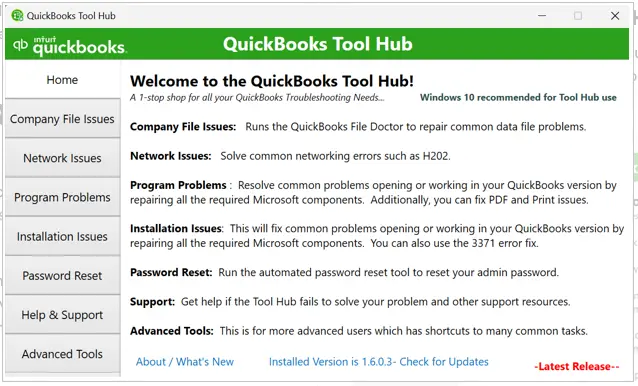
- Open Company File Issues
- Run QuickBooks File Doctor
- Scan the affected company file
What It Repairs
- Network communication issues
- Minor file corruption
- Database inconsistencies
- Hosting conflicts
Solution 6: Check Folder Permissions
Steps:
- Right-click the company file folder
- Select Properties → Security
- Ensure users have:
- Full Control
- Read/Write permissions
- Apply changes
Importance
Improper permissions often create hidden communication failures.
Advanced Solutions for Recurring Error 6000, 107
Solution 7: Restart QuickBooks Database Services
Steps:
- Press Windows + R
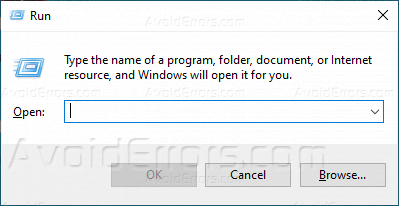
- Type services.msc
- Locate:
- QuickBooksDBXX
- Right-click → Restart
Advanced Benefit
Refreshes inactive database communication sessions.
Solution 8: Configure Firewall Exceptions
Allow These Files:
- QBDBMgrN.exe
- QBW32.exe
- FileManagement.exe
Also Open QuickBooks Ports
Ports vary depending on QuickBooks version.
Why This Matters
Blocked ports interrupt workstation-to-server communication.
Solution 9: Re-scan Company File Folder Using Database Server Manager
Steps:
- Open QuickBooks Tool Hub
- Select Network Issues
- Launch Database Server Manager
- Scan the company file folder again
Purpose
Rebuilds broken hosting communication paths.
Solution 10: Repair QuickBooks Installation
Steps:
- Open Control Panel
- Go to Programs and Features
- Select QuickBooks
- Click Repair
Why This Helps
Corrupted QuickBooks program files may interfere with server communication.
Preventive Measures
Below mentioned are the preventive measures:
Close QuickBooks properly
- Avoid forced shutdowns or abrupt restarts while QuickBooks is running to prevent TLG corruption.
Perform regular verified backups
- Always test backups to ensure the .QBW and .TLG files remain in sync.
Keep QuickBooks updated
- Install the latest patches to reduce risks of file handling bugs.
Run QuickBooks File Doctor periodically
- Detects early signs of file corruption and repairs minor inconsistencies.
Use stable LAN connectivity
- Prevents incomplete transaction logging due to disconnections in multi‑user mode.
Restrict hosting to the server
- Ensure only the server hosts the company file to avoid conflicts.
Configure firewall exceptions
- Whitelist QuickBooks executables and ports to maintain uninterrupted database communication.
Monitor QuickBooks Database Services
- Regularly check QuickBooksDBXX services to ensure they are running smoothly.
- Avoid mismatched restores
Conclusion
QuickBooks Error 6000, -107 is a critical company file access issue that primarily stems from a damaged Transaction Log File (.TLG) or mismatched backup restores. While the error message may appear to indicate company file corruption, the underlying problem is usually tied to support files (.TLG/.ND), hosting conflicts, or firewall restrictions.
Basic fixes such as renaming the .TLG file or verifying hosting settings often resolve the issue temporarily, but recurring errors point to deeper problems in server configuration, backup integrity, or database communication. To ensure long‑term stability, businesses should adopt preventive measures like verified backups, proper shutdowns, firewall audits, and periodic File Doctor scans.
Ultimately, the error highlights the importance of healthy support files and stable hosting environments in maintaining uninterrupted access to financial records, payroll data, and accounting transactions.
Frequently Asked Questions (FAQs)
Is QuickBooks Error 6000, -107 always a company file corruption issue?
No. It is usually caused by a damaged .TLG file or mismatched backup restore, not the company file itself.
Why does the error appear after restoring a backup?
Because the restored .QBW file may not align with the existing .TLG file, causing QuickBooks to fail in syncing transactions.
Can I fix Error 6000, -107 without advanced technical skills?
Yes. Renaming the .TLG file and verifying hosting settings are beginner‑level fixes that often work.
Does antivirus or firewall software cause this error?
Yes. Security software can block QuickBooks Database Server Manager, leading to communication failures.
How can I prevent recurrence of Error 6000, -107?
By closing QuickBooks properly, maintaining verified backups, restricting hosting to the server, and configuring firewall exceptions.