
Quickbooks Error -6190, – 816 is a common yet highly disruptive company file error that usually appears when users attempt to open a Quickbooks company file in a multi-user environment. The issue occurs when Quickbooks fails to establish proper communication between the company file and the server hosting. The error is commonly linked to file locking conflicts, damaged network files, incorrect hosting configuration, or mismatched transaction log files.
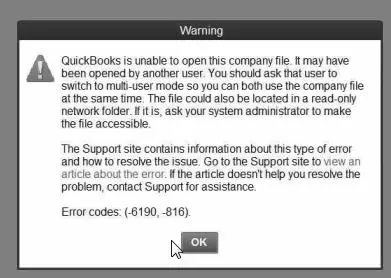
The error message reads:
QuickBooks is unable to open this company file. It may have been opened by another user. You should ask that user to switch to multi-user mode so you can both use the company file at the same time. The file could also be located in a read-only network folder. Error codes (-6190, -816).
Contents
- 1 What does the -816 Sub-Code Means?
- 2 Symptoms of Error -6190, -816
- 3 Root Cause Analysis
- 4 Migration from QuickBooks Desktop to Online – Error 6190, -816
- 5 QuickBooks Online vs Enterprise – Error 6190, -816
- 6 Beginner-Level Solutions to Fix QuickBooks Error 6190 and 816
- 7 Intermediate Solutions for Persistent File Locking Issues
- 8 Advanced Solutions for Recurring Error 6190 and 816
- 9 Preventive Measures
- 10 Conclusion
- 11 FAQs
- 11.1 Q1: Why does Error -6190, -816 occur only in Desktop/Enterprise?
- 11.2 Q2: Can renaming ND/TLG files cause data loss?
- 11.3 Q3: Does migration to QuickBooks Online eliminate this error?
- 11.4 Q4: How often should Database Server Manager be run?
- 11.5 Q5: Is Error -6190, -816 related to Error -6189?
What does the -816 Sub-Code Means?
The primary code 6190 indicates QuickBooks cannot open the company file in the current multi-user context. The secondary code -816 narrows the failure to one of two specific conditions:
Condition 1: A file lock is active
The company file is held open by another user or session (including ‘ghost’ sessions where QuickBooks crashed but the lock was not released).
Condition 2: A TLG mismatch
The .TLG transaction log file does not match the current state of the .QBW company file — usually because one was updated on one machine without syncing to the other.
Both conditions produce the same error message. The fix path is the same for both: clear the lock, resync the support files, and re-establish multi-user access.
Symptoms of Error -6190, -816
- Error pop-up message: “An error occurred when QuickBooks tried to access the company file (-6190, -816).”
- Multi-user access failure: Users cannot open the company file in multi-user mode.
- Single-user lock: Another user is logged in under single-user mode, blocking access.
- File mismatch alert: QuickBooks detects inconsistency between the company file (.QBW) and transaction log (.TLG).
- Workstation/server conflict: Some workstations fail to connect to the server hosting the company file.
- Performance lag: QuickBooks slows down or freezes when attempting to open the file.
Root Cause Analysis
1. File Mismatch Between QBW & TLG
The transaction log file (.TLG) does not match the company file (.QBW).
Occurs when QuickBooks updates one file but not the other, leading to inconsistency.
2. Multi-User Conflict
Another user is logged into the company file in single-user mode.
Prevents additional users from accessing the file in multi-user mode.
3. Corrupted ND/TLG Files
Network descriptor (.ND) or transaction log (.TLG) files are damaged.
QuickBooks cannot establish a proper connection to the company file.
4. Server Hosting Misconfiguration
QuickBooks Database Server Manager is not properly configured.
Hosting settings conflict between server and workstations.
5. Improper Shutdown or Crash
System crash or improper QuickBooks shutdown leaves files in an inconsistent state.
Leads to mismatch errors when reopening the company file.
Migration from QuickBooks Desktop to Online – Error 6190, -816
When businesses move from QuickBooks Desktop to QuickBooks Online, the process involves transferring the company file into a cloud environment. This shift often surfaces Error -6190, -816 because the error itself is rooted in file mismatches between the company file (.QBW) and its transaction log (.TLG).
During migration, if the Desktop file is left open in multi-user mode or if the transaction log hasn’t been properly synchronized, QuickBooks interprets the mismatch as a conflict. That’s why this error is frequently reported in migration contexts; it’s essentially QuickBooks signaling that the file state is inconsistent.
So, migration isn’t just about moving data; it’s about ensuring the file is clean, consistent, and accessed in the right mode. In documentation, tying Error -6190, -816 to migration helps technicians explain why users encounter it mid-process and how it reflects deeper issues with file integrity.
QuickBooks Online vs Enterprise – Error 6190, -816
This comparison is trending because businesses are evaluating whether to stay with Enterprise/Desktop or move to Online. The distinction directly relates to Error -6190, -816:
- Enterprise/Desktop relies on local hosting or third‑party servers. Multi‑user conflicts are common because multiple users may attempt to access the same file, leading to ND/TLG mismatches — the exact trigger for Error -6190, -816.
- Online, by contrast, is hosted in Intuit’s cloud. Multi‑user access is managed centrally, so mismatches don’t occur at the file level. Instead, issues are more about browser sessions or internet connectivity, not transaction log conflicts.
This means the error is a Desktop/Enterprise phenomenon, not an Online one. Framing it this way helps technicians explain to users why they see the error in Desktop but not Online, and why migration to Online can eliminate certain categories of multi‑user conflicts altogether.
Beginner-Level Solutions to Fix QuickBooks Error 6190 and 816
Solution 1: Restart All Computers
Temporary file locks often disappear after a full restart.
Steps:
- Close QuickBooks on all systems
- Restart:
- Server computer
- All workstations
- Open QuickBooks only on the server first
- Allow users to reconnect gradually
Why This Helps
It clears inactive sessions and temporary network conflicts.
Solution 2: Verify Multi-User Mode
Steps:
- Open QuickBooks on the server
- Go to File → Utilities
- If “Switch to Multi-user Mode” appears, click it
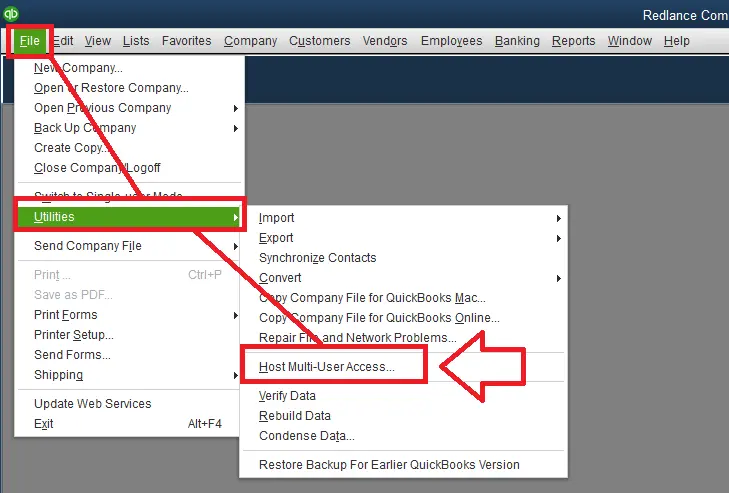
- Reconnect workstations afterward
Important
Single User Mode is one of the leading causes of Error 6190 and 816.
Solution 3: Update QuickBooks Desktop
Outdated QuickBooks versions may contain unresolved multi-user bugs.
Steps:
- Open QuickBooks
- Go to Help → Update QuickBooks Desktop
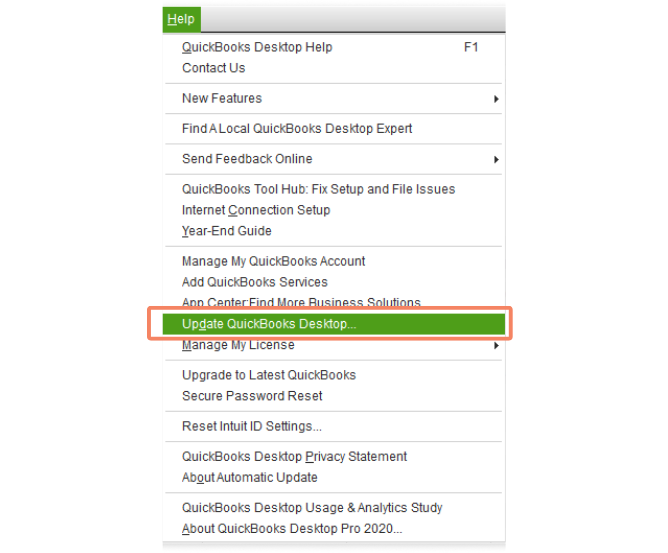
- Select Update Now
- Install updates
- Restart QuickBooks
Intermediate Solutions for Persistent File Locking Issues
Solution 4: Rename ND and TLG Files
This is one of the most effective fixes for Error 6190 and 816.
Steps:
- Open the company file folder
- Locate:
- .ND file
- .TLG file
- Right-click each file → Rename
- Add “.OLD” at the end
Example:
- companyfile.qbw.nd → companyfile.qbw.nd.old
- companyfile.qbw.tlg → companyfile.qbw.tlg.old
Why This Works
QuickBooks automatically recreates fresh network configuration files.
Solution 5: Run QuickBooks File Doctor
QuickBooks Tool Hub includes File Doctor for repairing network and company file issues.
Steps:
- Download and install QuickBooks Tool Hub
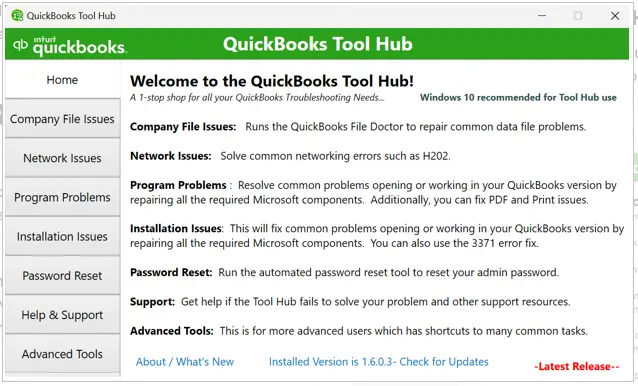
- Open Company File Issues
- Run QuickBooks File Doctor
- Scan the affected company file
What It Repairs
- Network communication failures
- Minor company file damage
- Hosting conflicts
- Database inconsistencies
Solution 6: Check Folder Permissions
Steps:
- Right-click the company file folder
- Select Properties → Security
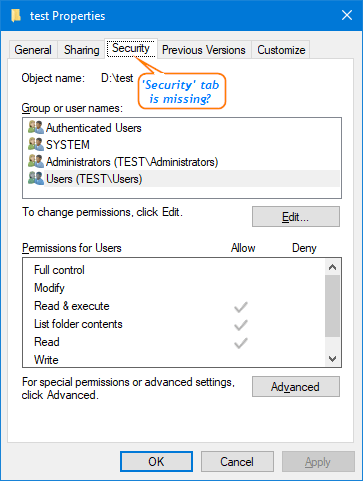
- Ensure all QuickBooks users have:
- Full Control
- Read/Write access
- Save changes
Why This Matters
Permission restrictions can create hidden file locking conflicts.
Advanced Solutions for Recurring Error 6190 and 816
Solution 7: Verify Hosting Settings
Only the server should host the company file.
On Workstations:
- Open QuickBooks
- Go to File → Utilities
- Click “Stop Hosting Multi-User Access” if visible
On Server:
Ensure “Host Multi-User Access” remains enabled.
Solution 8: Restart QuickBooks Database Services
Steps:
- Press Windows + R
- Type services.msc
- Locate:
- QuickBooksDBXX
- Right-click → Restart
Advanced Benefit
This refreshes broken database communication sessions.
Solution 9: Configure Firewall Exceptions
Windows Firewall may block QuickBooks ports required for hosting.
Allow These Files:
- QBDBMgrN.exe
- QBW32.exe
- FileManagement.exe
Why This Helps
It restores proper communication between workstations and the server.
Solution 10: Use QuickBooks Database Server Manager
Steps:
- Open QuickBooks Tool Hub
- Select Network Issues
- Launch Database Server Manager
- Scan company file folders
Purpose
This rebuilds hosting connectivity and refreshes network paths.
Preventive Measures
Single-user mode during maintenance : Always perform updates, backups, or migrations in single-user mode to avoid file conflicts.
Regular ND/TLG file cleanup : Periodically rename or refresh .ND and .TLG files to prevent mismatch errors.
Proper shutdown protocols : -Ensure QuickBooks is closed properly before system shutdown to avoid leaving files in inconsistent states.
Database Server Manager scans : Run scans regularly to keep multi-user hosting stable and synchronized.
Update QuickBooks Desktop : Keep QuickBooks and Tool Hub updated to minimize compatibility issues.
Server/workstation restart routines : Restart hosting servers and connected workstations after major updates or crashes.
Conclusion
QuickBooks Error -6190, -816 is not just a pop-up it’s a signal of file mismatch or multi-user conflict. By understanding its root causes (ND/TLG corruption, hosting misconfiguration, improper shutdowns), technicians can resolve it quickly and prevent recurrence.
Preventive measures like single-user mode during maintenance, regular ND/TLG cleanup, and proper shutdown protocols ensure operational reliability. For businesses considering migration, this error highlights the architectural differences between Desktop/Enterprise (local hosting prone to conflicts) and Online (cloud-hosted, fewer file mismatch issues).
Ultimately, addressing Error -6190, -816 is about both fixing the immediate conflict and anticipating future risks through proactive maintenance and migration planning.
FAQs
Q1: Why does Error -6190, -816 occur only in Desktop/Enterprise?
- Because it’s caused by local file mismatches (.QBW vs .TLG) and multi-user conflicts. QuickBooks Online doesn’t rely on local files, so this error doesn’t appear there.
Q2: Can renaming ND/TLG files cause data loss?
- No. Renaming these files only forces QuickBooks to recreate them. The company file (.QBW) remains intact.
Q3: Does migration to QuickBooks Online eliminate this error?
- Yes. Since Online is cloud-hosted, file mismatch errors like -6190, -816 don’t occur. However, Online has its own limitations (e.g., internet dependency).
Q4: How often should Database Server Manager be run?
- After every major update, or whenever new company files are added to the server.
- They are similar but distinct. Error -6189 often points to issues with multi-user access permissions, while -6190, -816 specifically indicates file mismatch or ND/TLG corruption.